
While travelling, you may want to open a ticket, message family or check an address. Wi-Fi at a terminal, café or on a bus can help, but the network name alone does not establish who operates it. Prepare your phone before leaving and make a deliberate choice when connecting. An encrypted connection reduces particular risks; it does not make every website or unfamiliar network trustworthy.
Prepare your phone before departure
Update the operating system and browser over your usual connection. Check your screen lock and access to important accounts. If you use an additional login verification step, consider how you will receive a code without your usual SIM or network. Do not disable account protection simply for convenience at a terminal. Settings vary between devices, so consult guidance for your particular version.
Download the ticket, boarding address and support contacts. Open the files with data connections switched off to confirm that you have actual copies rather than cloud links. The electronic ticket preparation guide helps you check every page. Keep enough battery for boarding and communication: Wi-Fi availability does not imply a nearby power socket or a continuously working connection.
Establish which network you are joining
Ask staff or the bus crew for the exact network name and login procedure. Several similar names do not necessarily represent several official options. If a welcome page is used, read its address and the requested information carefully. Joining a network should not become a reason to disclose a banking password or install an unknown application.
Do not install an unfamiliar certificate or change protective settings just because a pop-up asks you to. If the procedure is unclear, check with responsible staff or decline the connection. A network password limits access, but it does not establish that every connected person and every website is reliable.
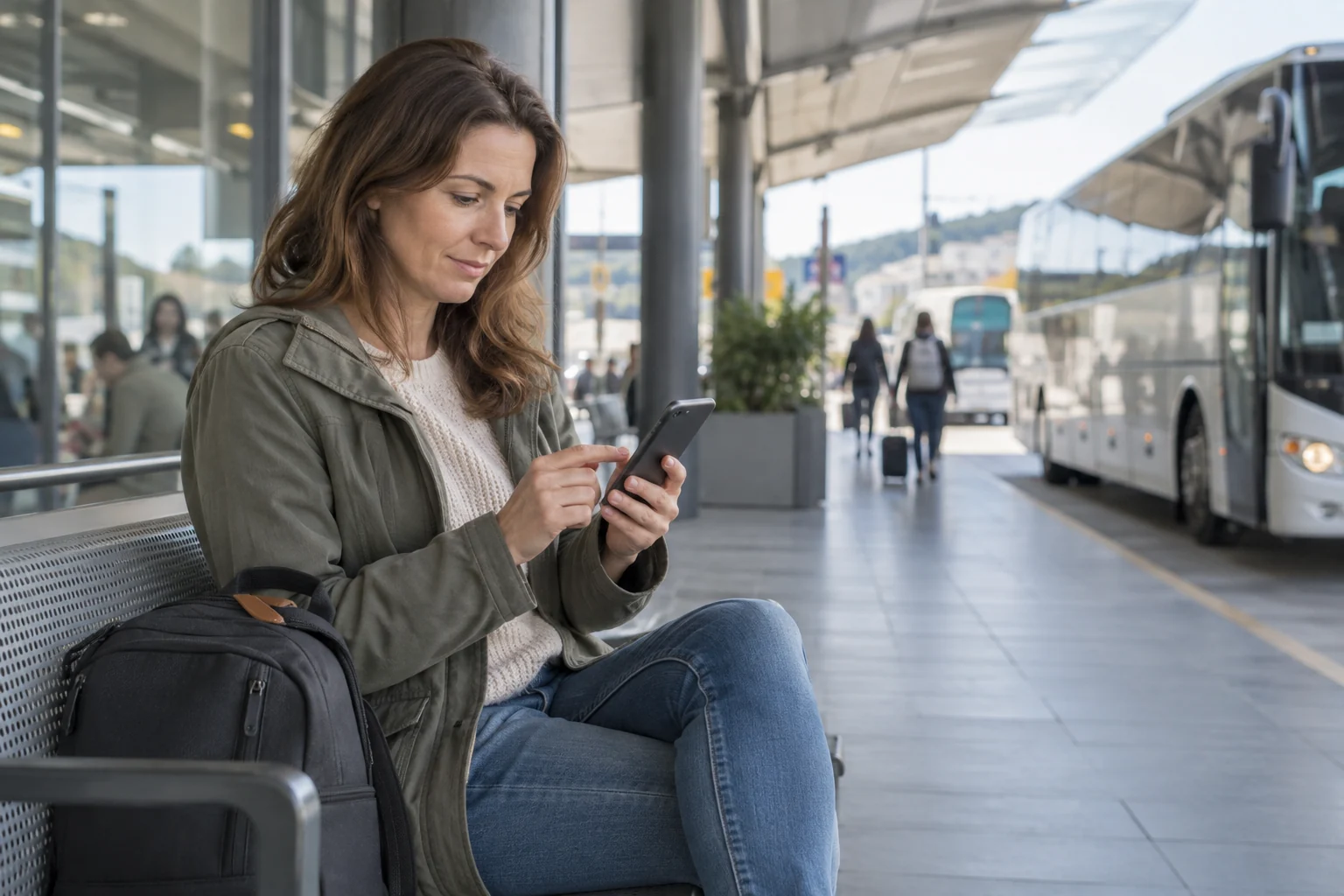
Check both the connection and website address
Look at the complete address of the intended service as well as HTTPS. Encryption protects the transfer to the site, but a fraudulent page can also use HTTPS. Open an address from a saved bookmark or verified application rather than a random message. Do not bypass a browser certificate warning simply to finish a purchase.
In Chrome (official instructions), you can review the Always use secure connections setting; its wording and location depend on the version. It helps upgrade connections to HTTPS and warns about some insecure connections, but does not establish the seller's honesty. For another browser, find its corresponding official instructions. If a payment or account recovery process looks questionable, postpone it until you have a connection you understand.
Share only the information needed
Do not publish the complete ticket in an open chat or send an identity document to someone claiming to be support without verifying them. For a correction, use the official contact from your confirmation; the ticket details correction guide explains what to prepare. Disclose only information relevant to the particular request.
Turn off file sharing and device discovery if you do not need them; the names of these settings vary by system. A VPN may protect part of the communication through its channel, but does not make a fake website genuine and requires trust in its provider. Do not install an unknown service just before paying and expect universal protection.
Disconnect and keep a backup plan
After use, disconnect and cancel automatic joining for that network if enabled. Sign out of accounts on a borrowed device; private browsing does not replace signing out. If you entered information on a suspicious page, stop and contact the service's official support using verified contact details.
Discuss possible gaps in coverage with family and save a travel contact plan. Do not promise continuous availability: coverage, battery and route conditions change. A downloaded ticket and saved contacts let you continue when public Wi-Fi is absent or does not inspire confidence.
← Back to the journal